

Google Maps for Study Libraries: Set Up Your Business Profile
Key takeaways
- A Google Business Profile is free, and it decides whether you appear when students search "library near me" on Google Maps.
- Google ranks local results mainly on relevance, distance and prominence. You can improve relevance and prominence.
- Use your real library name, the exact pin, correct hours and the closest category.
- Real photos of seats, AC, washrooms and the entrance matter more than designed posters.
- Steady, genuine reviews with replies from you build trust and visibility over time.
When a student types "study library near me" or "reading room in [your area]" into Google, the map results at the top come from Google Business Profiles. A complete, active profile is often the biggest single source of new enquiries for a study library, and it costs nothing.
Step 1: Create the profile
- Go to Google Business Profile (business.google.com) and sign in with a Google account you will keep, ideally one used only for the library.
- Search for your library's name. If a listing already exists (students sometimes add one), claim it instead of creating a duplicate.
- Enter the name exactly as it appears on your signboard. Do not add keywords such as "Best AC library" to the name. Google can suspend profiles for that.
- Choose your primary category: type "library" or "study" and pick the closest match Google offers. You can add secondary categories later.
- Place the map pin exactly on your entrance, and add your phone number and website. Your Libolink library page works well as the website.
Step 2: Verify it
Google needs to confirm that you manage the business before the profile goes fully live. Depending on your business, it may offer verification by phone, email, a short video of your premises and signboard, or another method. Keep your signboard visible, and make sure your address matches what you entered.
Step 3: Complete every section
- Hours: opening and closing times for each day, plus special hours for holidays. Wrong hours are one of the quickest ways to lose trust.
- Description: two or three plain sentences about who the library is for, your shifts, facilities and area. For example: "Quiet AC self-study library near the coaching hub in Civil Lines. Morning, evening and full-day shifts, cabin seats, Wi-Fi, RO water, CCTV and power backup. Open 6 am to 11 pm."
- Amenities: add any that Google offers for your category, such as Wi-Fi or wheelchair access.
- Products or services: list your plans, such as "Morning shift, monthly", with prices if you are comfortable showing them.
- Website: link to your library page so students can see plans and send an enquiry.
Step 4: Add photos students want to see
- The entrance and signboard, so students can find you.
- The full hall, and a close-up of a single desk.
- AC units, lighting, charging points, lockers and the water purifier.
- A clean washroom.
- The street outside at night, if it is well lit.
Use real, recent photos taken in good light, and add new ones every month or two. An active profile looks like an active library.
Step 5: Collect and answer reviews
- Ask happy students, ideally after their first month, to leave an honest review. Share your review link in a short message.
- Reply to every review within a few days. Thank people for positive reviews. For complaints, apologise, say what you fixed, and invite them to talk to you.
- Never pay for reviews, write fake ones, or give discounts only in exchange for five stars. Google's policies forbid it, and reviews can be removed or the profile restricted.
Step 6: Keep it active
- Post an update when seats open, before exam season, or when you add a facility.
- Keep hours correct for festivals and holidays.
- Check the profile's performance numbers each month: searches, calls and direction requests.
How local ranking works
Google says local results are based mainly on three things:
- Relevance: how well your profile matches the search. Complete, accurate information helps.
- Distance: how far the searcher is from you. You cannot change this, which is why location matters so much.
- Prominence: how well known you are, from reviews, ratings, links and mentions across the web.
You cannot pay for a higher position in the regular (non-ad) map results.
Common mistakes
- Adding keywords or the city name to the business name.
- Two profiles for the same library.
- A pin in the wrong lane, so students get lost.
- Stock photos or posters instead of real photos.
- Ignoring negative reviews.
How Libolink helps
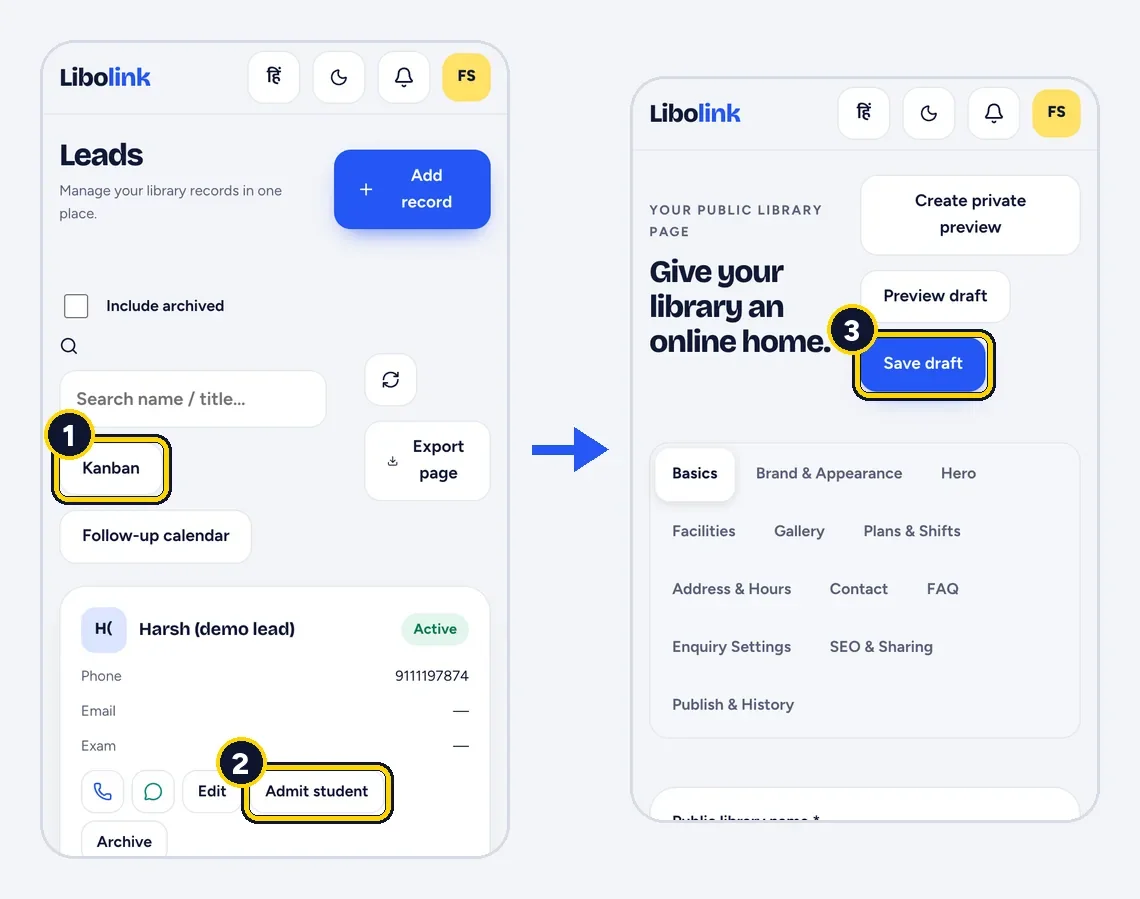
Your Libolink library page gives your profile a proper website link: photos, facilities, plans, timings and an enquiry form, with a WhatsApp share button. Every enquiry from the page goes straight into Leads so you can follow up. See the features or read How to Get More Students for Your Study Library.
Frequently asked questions
How do I add my library to Google Maps?
Create a free Google Business Profile at business.google.com with your exact library name, location pin, phone number and hours, then complete Google verification. Once verified, the profile can appear in Google Maps and Search.
Which category should a study library choose on Google?
Choose the closest primary category Google offers, such as Library, and add relevant secondary categories if they are available. Do not add keywords to your business name.
How do I rank higher for "library near me"?
Complete every section of your profile, add real photos, keep hours accurate, collect steady genuine reviews and reply to them. Distance to the searcher also matters and cannot be changed.
Is a Google Business Profile free?
Yes. Creating and managing a Google Business Profile is free. Google Ads are optional and separate.