

Easy Library Management Software: Simple From the First Day
Key takeaways
- Libolink opens on a To do today list, so you never have to work out where to start.
- Every list leads to an action button: Collect fee, Call, WhatsApp, Verify, Renew. Most daily jobs take one or two taps.
- Setup takes about an hour: choose your shifts, plans and seats, then import students from Excel.
- It works in Hindi and English, on a phone or a computer, and your staff and students use the same app.
- A picture guide is built into the app, and you can try everything with sample data before signing up.
Many library owners have tried software before and gone back to the register, because the software asked them to learn too much. Libolink is built the other way round: it starts from the jobs you already do at the desk, and puts each one a tap away.
It tells you what to do
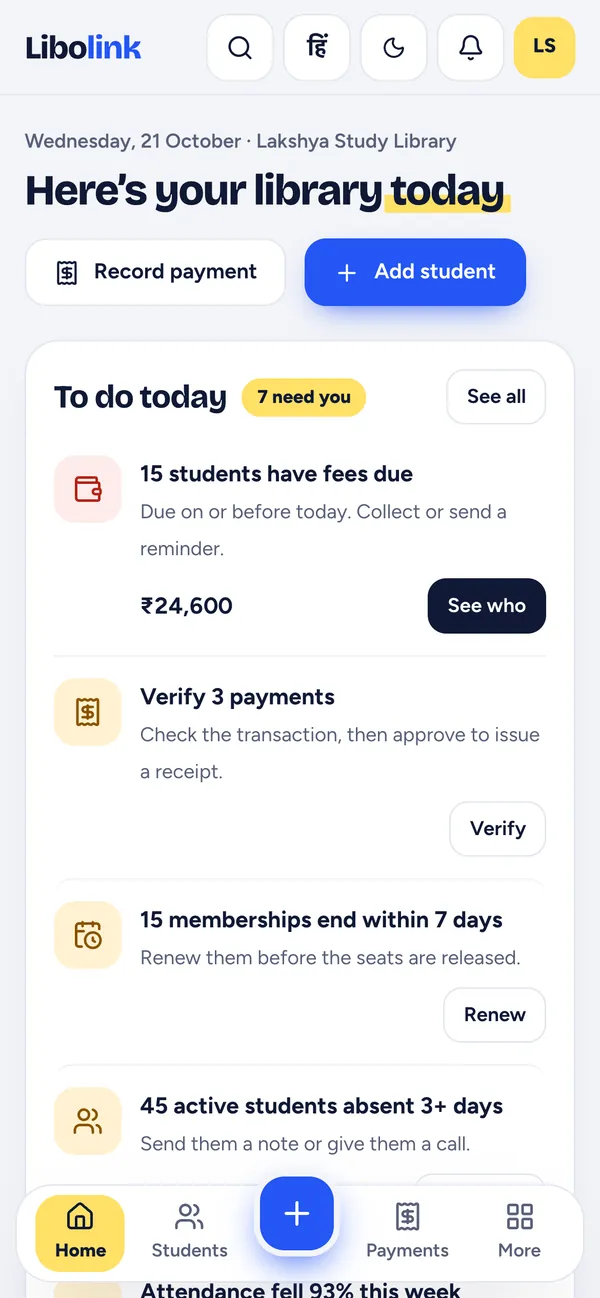
When you open Libolink, you do not see a wall of menus. You see Here's your library today and a To do today list:
- 15 students have fees due, with the total. Button: See who
- Verify 3 payments. Button: Verify
- 15 memberships end within 7 days. Button: Renew
- 45 students absent for 3 or more days. Send them a note or give them a call.
Finish an item and it disappears. When everything is done, the list says so. Two big buttons, Record payment and Add student, cover the jobs the desk does most.
One tap from list to action
Every list opens the actual students, each with the buttons you need: Call, WhatsApp, a ready-written SMS, Send note, Collect fee and Profile. You do not copy phone numbers or type messages. Tap a seat on the seat map and the same buttons appear.
Set up in about an hour
- Pick your shifts from ready choices (Morning, Evening, Full day) or type your own timings.
- Add your plans and fees, one per shift.
- Add seats in a range, such as A1 to A60, in one step.
- Download the Excel format, fill one row per student and upload it. The template already lists your plans, shifts and seats, with instructions in Hindi.
Libolink checks every row before saving and tells you in plain words which row and column to fix.
Your language, your device
- Hindi and English, switchable with one tap, for owners, staff and students.
- Any phone or computer. Libolink works in the web browser today and can be added to the home screen. The iPhone app is on the App Store and the Android app is coming to Google Play, with the same account.
- Search or jump to anything. Type "fees" or a student's name in the search box instead of hunting through menus.
- Pin your favourite pages, so the screens you use daily are always at the top.
Easy for your staff
Give each staff member their own login with a ready-made role: Reception desk, Manager or Accounts. They see only what their job needs, so the screen stays short. At check-in time, Reception mode turns a phone or tablet into a QR stand:
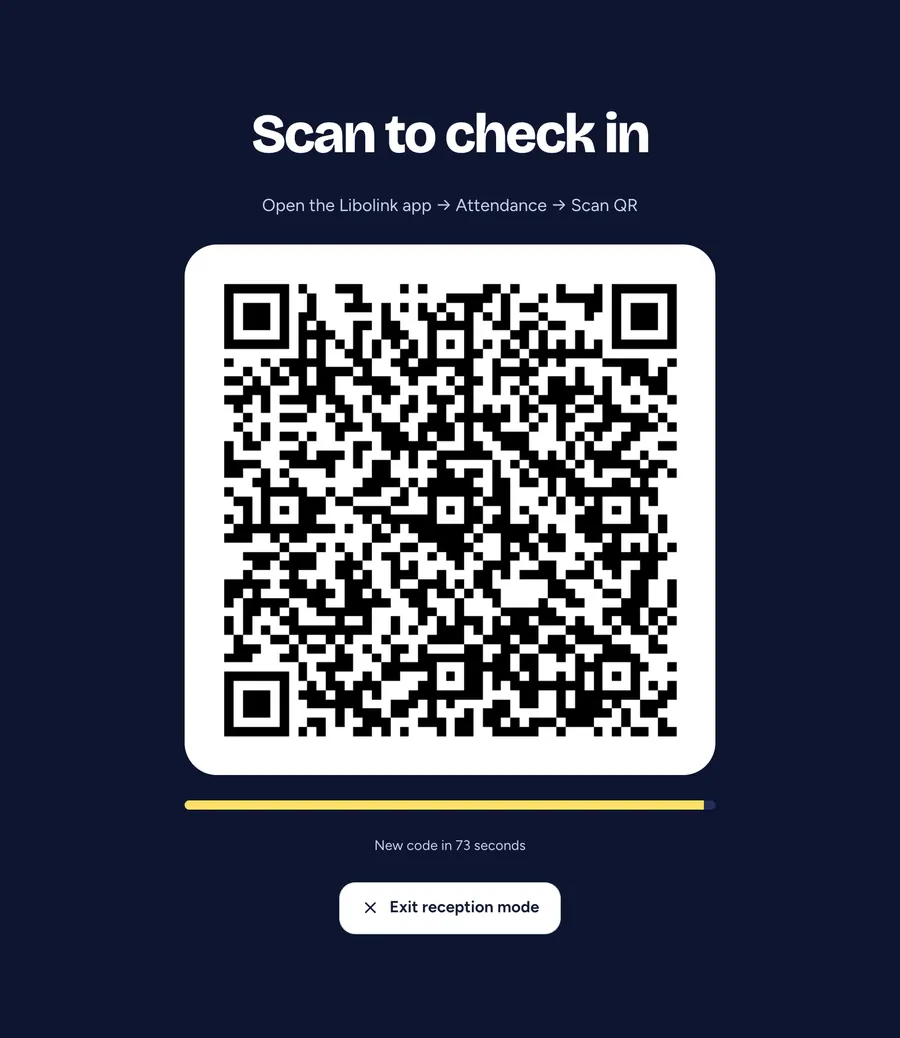
Students scan it from their app. The code changes every 90 seconds, so nobody marks attendance from home, and the desk does nothing.
Easy for your students
Students sign in with your Library Code and their Student ID or mobile number. Their phone offers to save the password, so they stay signed in. Their app shows their library card, seat, fees with a Pay button, notices and study tools, so they stop asking the desk "how much do I owe?".
Help when you need it
- A User guide with pictures is built into the app, in simple language.
- The product tour lets you click through every screen with sample data before you sign up.
- Questions? Chat with Libolink on WhatsApp from the website.
What we left out on purpose
Libolink does not manage book lending, catalogues or barcodes, because study libraries do not need them. Leaving them out keeps every screen about seats, students and fees. For the full list of what Libolink does, see Why Libolink.
Start your free 30-day trial. No card is needed, and most owners finish setup on day one.
Frequently asked questions
Is Libolink easy to use for library owners who are not technical?
Yes. It opens on a To do today list with one-tap buttons, works in Hindi and English, and has a picture guide built in. Setup takes about an hour.
How long does it take to set up Libolink?
Most libraries are running within a day: choose shifts and plans, add seats in a range, and import students from the Excel format.
Do my staff need training?
Very little. Each staff member gets a role that shows only what their job needs, and the desk jobs (check-in, collect fee, add student) are one or two taps.
Can I try Libolink without signing up?
Yes. The product tour shows every screen with sample data. When you are ready, the 30-day free trial needs no card.