

Library Seat Map Software: See Every Seat, Shift and Student
Key takeaways
- The seat map shows every seat by building and floor, with the student's name on each seat, so you see your whole library on one screen.
- Counts at the top answer the daily questions: total seats, free now, given, in the library now and under repair.
- Switch between Right now, Whole day or one shift to see exactly which seats are free when.
- Tap a seat to call or message its student, release the seat, or give an absent student's seat to someone else for the day.
- Libolink offers only free seats when you assign one, so two students never get the same seat in the same shift.
In a study library, seats are what you sell. A register cannot show you, at a glance, which seats are free in the evening shift or who has not come today. Libolink's seat map does, on a phone or a computer, and it is built to be read in seconds.
Your whole library on one screen
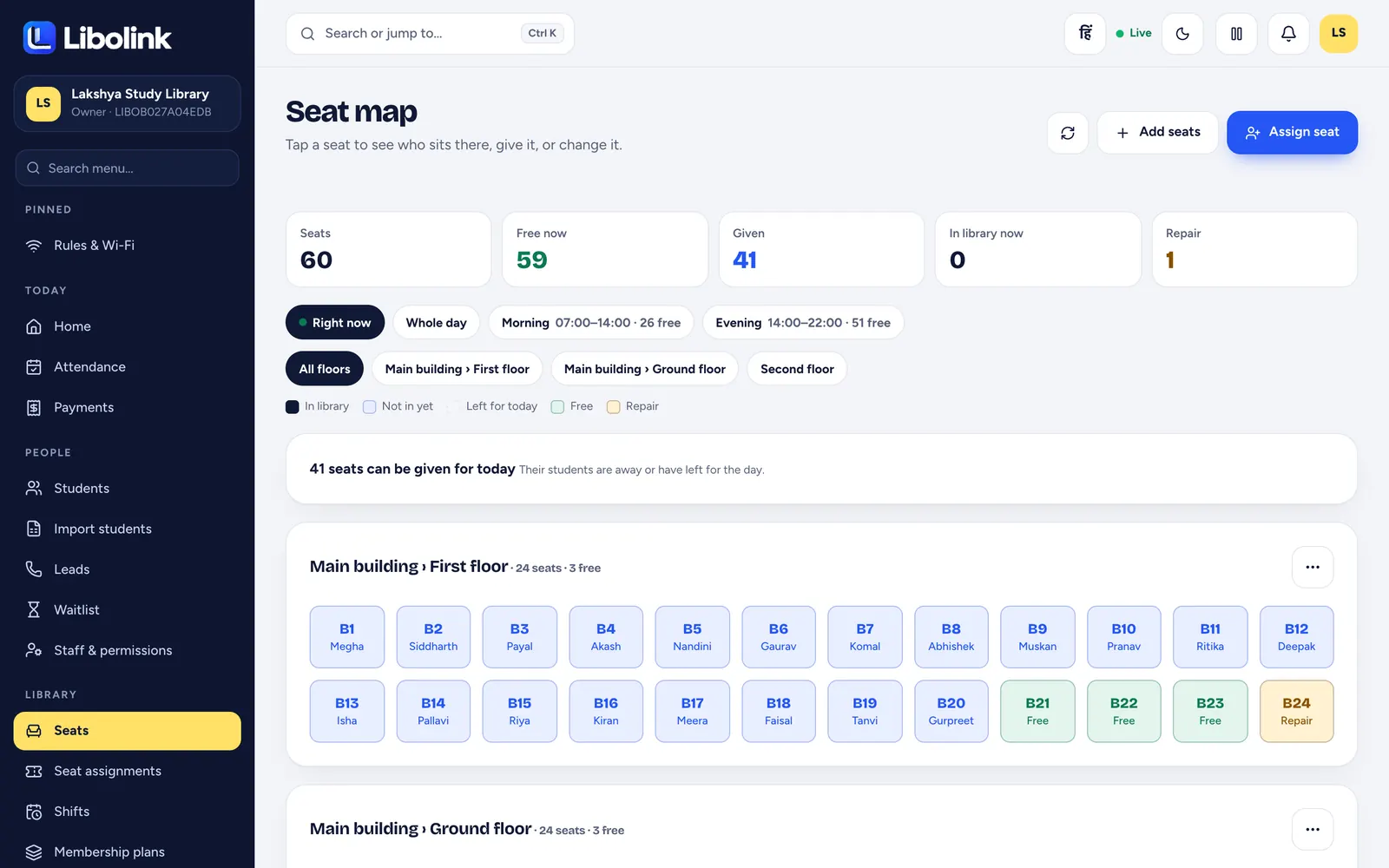
Seats are grouped the way your building is: by building, floor or room, such as Main building › First floor. Each seat is a tile with its number and the name of the student who sits there. Free seats say Free. Seats under repair say Repair.
At the top, five numbers answer the questions you ask every day:
| Count | What it tells you |
|---|---|
| Seats | How many seats you have in total |
| Free now | Seats nobody holds right now |
| Given | Seats assigned to students |
| In library now | Students checked in at this moment |
| Repair | Seats out of use |
See it by time: right now, whole day or one shift
Most libraries sell the same seat twice: once in the morning, once in the evening. The map lets you switch between:
- Right now: who holds each seat at this moment, and who is actually sitting there.
- Whole day: every assignment for today.
- Each shift: for example Morning 07:00–14:00 with 26 free, Evening 14:00–22:00 with 51 free.
The free count on each shift tells you at once where you have room to sell, before a walk-in student even asks.
Colours you can read from across the room
Each seat tile is colour-coded:
- In library: the student has checked in.
- Not in yet: the seat is given, but the student has not come.
- Left for today: the student came and has gone.
- Free: nobody holds this seat.
- Repair: marked broken, so nobody is given it.
- Booked online: a student has booked this seat online and it is held until you approve or reject the booking.
Girls-only seats show in pink with a ♀ mark (boys-only seats get a ♂ mark), so staff see the sections at a glance; see Girls Section in a Study Library. Filter by floor when the library is big, or show all floors together.
Manage a seat with one tap
Tap any seat to open its student, with:
- Their shift, plan and the date the plan ends
- Call, WhatsApp and SMS buttons
- Give for today, to give an absent student's seat to someone else; it returns to its own student the next morning
- Release seat, to free it without touching the student's plan
- Mark for repair or Edit seat for the seat itself
The map also says how many seats can be given for today, because their students are away or have left. On a full day, that is extra income without adding a single seat. See How to Fill Empty Seats When Students Are Absent.
No double booking
When you assign a seat, Libolink lists only the seats that are free in that shift and on those dates, floor by floor. The server checks again when you confirm, so even two staff members working at the same moment cannot give one seat twice.
Setting up the map takes minutes
- Add your shifts with their timings.
- Add seats in a range: choose a prefix and numbers, such as A1 to A40, and they are created together. Mark seats as standard, premium or locker seats if you price them differently.
- Put each range in its building and floor.
- Assign students, or let the Excel import put them in their seats.
Rename or remove a seat or a whole floor whenever your layout changes, and mark a broken seat for repair until it is fixed. Students see their seat number on their digital library card.
Why owners find it easy
There is nothing to learn: it looks like your library. Staff at the desk can answer "is there a seat in the evening?" in two seconds, and you can check the whole library from your phone at home. For planning seats and shifts in general, read Library Seat and Shift Management.
Start your free 30-day trial and draw your own seat map today. No card is needed.
Frequently asked questions
Does Libolink have a seat map for study libraries?
Yes. It shows every seat by building and floor with the student's name, counts free, given and in-library seats, and can be viewed right now, for the whole day or by shift.
Can I see which seats are free in each shift?
Yes. Each shift shows its timings and how many seats are free, and the map shows exactly which ones.
Can two students be given the same seat?
No. Libolink offers only seats that are free in that shift and on those dates, and checks again when you confirm.
Can I give an absent student's seat to someone else?
Yes, for the rest of the day. The seat returns to its own student the next morning.