

Run a Study Library Without Desk Staff: Self-Serve Mode
Key takeaways
- With Libolink, students can book a seat, pay, get their login and check in without anyone at the desk.
- Switch on online booking with automatic approval, take payments online only through your own Razorpay, and show the check-in QR on a tablet at the entrance.
- Reminders, forgotten check-outs and your 8 AM summary run by themselves.
- Students can renew themselves in the app and pay several months in advance at once, so even renewals need no desk.
- You still handle a few things from your phone in minutes a day: bookings from students under 18, refunds and complaints.
- Free staff training includes setting up self-serve mode with you, by phone, WhatsApp or video call.
Many library owners have a day job, a second branch, or simply cannot afford a full-time desk person. The desk work itself is repetitive: show a seat, take a fee, write a receipt, mark attendance, chase dues. Libolink can do most of it on its own, so a library can run with no desk staff, and the owner manages it from a phone.
This guide explains what runs by itself, how to switch it on, and what still needs you.
What runs by itself
| Desk job | How it happens without staff |
|---|---|
| A new student asks for a seat | They scan your QR poster, pick a plan, a start date and a free seat, and pay online |
| Approving the admission | Automatic approval creates the student, membership and seat as soon as the booking is paid |
| Taking the fee | Paid online through your own Razorpay account; the receipt is created instantly |
| Giving the login | The booking page shows the Student ID and a Set your password button; the link is also emailed and sent on WhatsApp if set up |
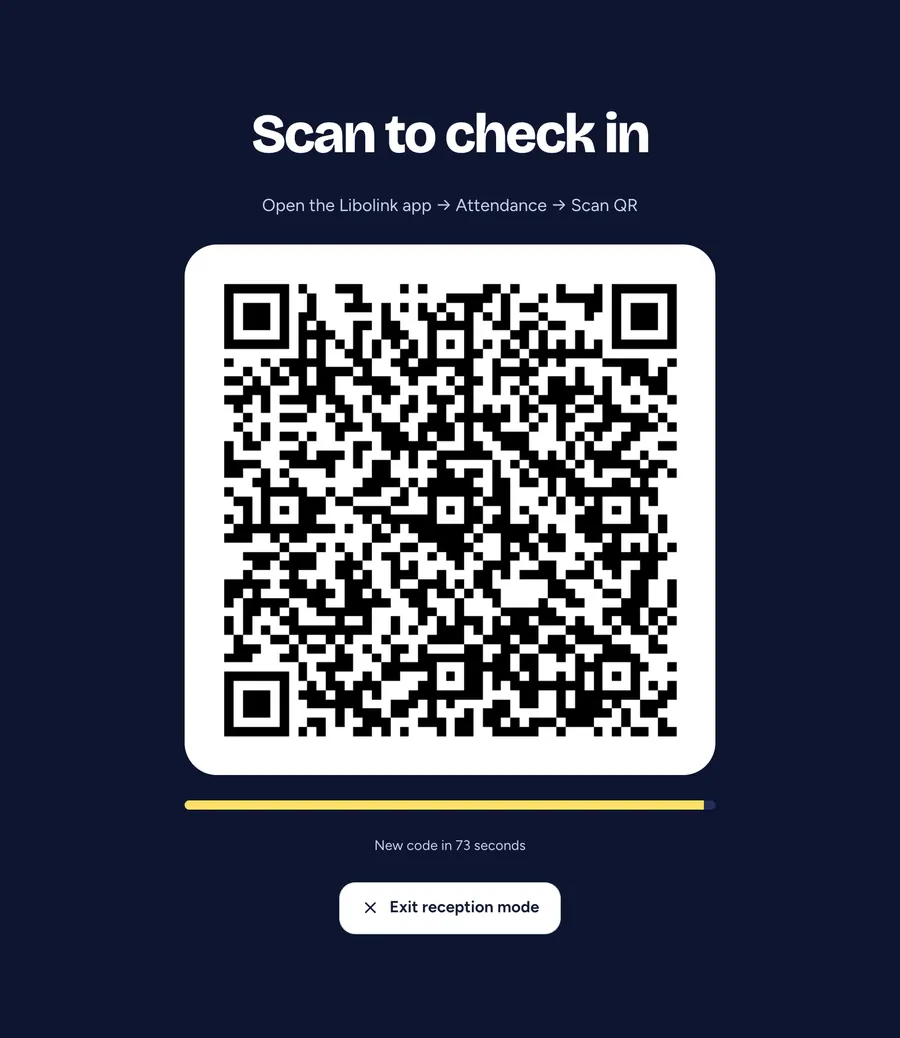
| Checking in | The student scans the check-in QR on a tablet at the entrance; the code changes every 90 seconds |
| Forgotten check-outs | Visits left open are checked out at closing time |
| Chasing fees and renewals | Reminders 7, 3 and 1 days before the due date, on the day and after, in the app and on WhatsApp |
| Renewing a membership | The student taps Renew in the app, chooses 1 to 12 terms paid in advance and pays at once; the seat stays theirs if it is free |
| No seat free | The student joins your waitlist, and you are told |
| Knowing how the day went | A summary every morning from 8 AM: fees due, renewals, absentees, free seats and anything to check |
Switch on self-serve mode in 8 steps
- Connect your Razorpay account in Settings, and choose Online only, so every payment confirms itself and nothing waits for a manual UPI check.
- Open People → Online booking → Link, QR & settings and tick Take online bookings.
- Under Who approves bookings, choose Approve every booking automatically (or when paid online). Under Ways to pay, keep Online only.
- If you have girls-only or boys-only sections, decide whether to tick Also approve girls-only and boys-only seats automatically.
- Keep Students can renew themselves ticked (it is on by default), so students renew and pay in advance from the app.
- Write your library rules and refund terms; students accept them before booking.
- Put an old phone or tablet at the entrance and open Attendance → Reception mode. It shows a full-screen check-in QR that renews itself.
- Print the QR poster from the booking settings and put it at your gate and around your area.
Add your Wi-Fi password and rules under Rules & Wi-Fi, so students find them in the app instead of asking.
What still needs you, from your phone
Self-serve mode removes the desk work, not the owner. Expect a few minutes a day:
- Renewals only if you keep them. With Students can renew themselves on (the default), students renew and pay in the app, up to 12 terms ahead; a student with fees due is shown a Clear dues button first. If you leave it off, renewing is one tap from the To do today list.
- Students under 18. Their bookings always wait for you, because a guardian must agree. Call the guardian, then approve.
- Girls-only or boys-only seats, if you did not allow automatic approval for them.
- Refunds, complaints and broken seats. Complaints come to you as notifications; refunds go from your Razorpay dashboard.
- Cash, if a student insists on paying it; record it when you visit.
Is it safe to leave the desk empty?
- No double booking. A chosen seat is held while the student pays, and the seat map never gives one seat twice in the same shift.
- No fake payments. With Online only, every payment is confirmed by Razorpay before the student gets the seat.
- No fake check-ins. The QR changes every 90 seconds, with an optional location check.
- You see everything. Every booking sends you a notification, and the audit history records each change.
- One booking per phone, and students under 18 never get in without you.
Keep the usual physical safeguards: CCTV at the entrance and common areas, a lock routine, and a phone number on the notice board for emergencies.
Who self-serve mode suits
- Owners with a job or business who visit the library once a day.
- Small libraries where a desk salary would eat the profit. See Best Library Software for a Small Study Library.
- 24-hour libraries where nobody sits at the desk at night.
- A second branch that does not yet need a manager. See Multi-Branch Library Software.
Set it up with free help
Every library on Libolink, including during the free trial, gets free staff training and growth consultancy. We can set up self-serve mode with you on a phone, WhatsApp or video call: email info@libolink.com or call 9170055568. See Free Staff Training and Growth Consultancy and Online Seat Booking.
Frequently asked questions
Can a study library run without desk staff?
Yes, for most desk work. With Libolink, students book a seat, pay online, get their login and check in by QR on their own, and reminders and check-outs run by themselves. Students can even renew and pay months in advance in the app. The owner handles under-18 bookings and refunds from a phone.
How do students pay if nobody is at the desk?
Online through your own Razorpay account. Choose Online only in Settings, and every payment confirms itself with an instant receipt. Libolink takes no commission.
How do students check in without staff?
Open Attendance, then Reception mode, on a tablet or old phone at the entrance. It shows a check-in QR that changes every 90 seconds; students scan it from the app.
What still needs the owner in self-serve mode?
Bookings from students under 18, girls-only or boys-only seats if you did not allow automatic approval, refunds and complaints. Renewals need you only if you leave Students can renew themselves off.
Can students pay several months in advance?
Yes. Unless the library has switched off Students can renew themselves, a student taps Renew in the app, chooses 1 to 12 terms and pays the total at once by UPI or online. The new period starts the day after the current one ends, and the seat continues if it is free.
Can Libolink help me set this up?
Yes, free. Email info@libolink.com or call 9170055568 for free setup and staff training, including during the free trial.