

Online Seat Booking for Study Libraries: QR Link, Pay, Approve
Key takeaways
- Students scan your QR poster or open your link, pick a plan, a start date and a free seat, and pay, at any hour, without calling you.
- The chosen seat is held while they pay, so two students never pay for the same seat, and staff cannot give it away meanwhile.
- Payment reaches your own UPI or Razorpay account. Libolink takes no commission on the booking.
- You approve each booking, or let Libolink approve paid ones on its own. Approval creates the student, membership, seat and login in one step.
- Girls-only and boys-only sections, under-18 guardian checks and a waitlist are built in.
Most new students find a study library the same way: they walk past, see a poster or hear from a friend, and then call. If nobody picks up, or the owner is busy at the desk, many of them never call again. Online seat booking lets a student book and pay for a seat the moment they are interested, even at 11 at night, while you stay in control of who gets in.
This guide explains how online booking works in Libolink, step by step, for the student and for you.
How a student books a seat
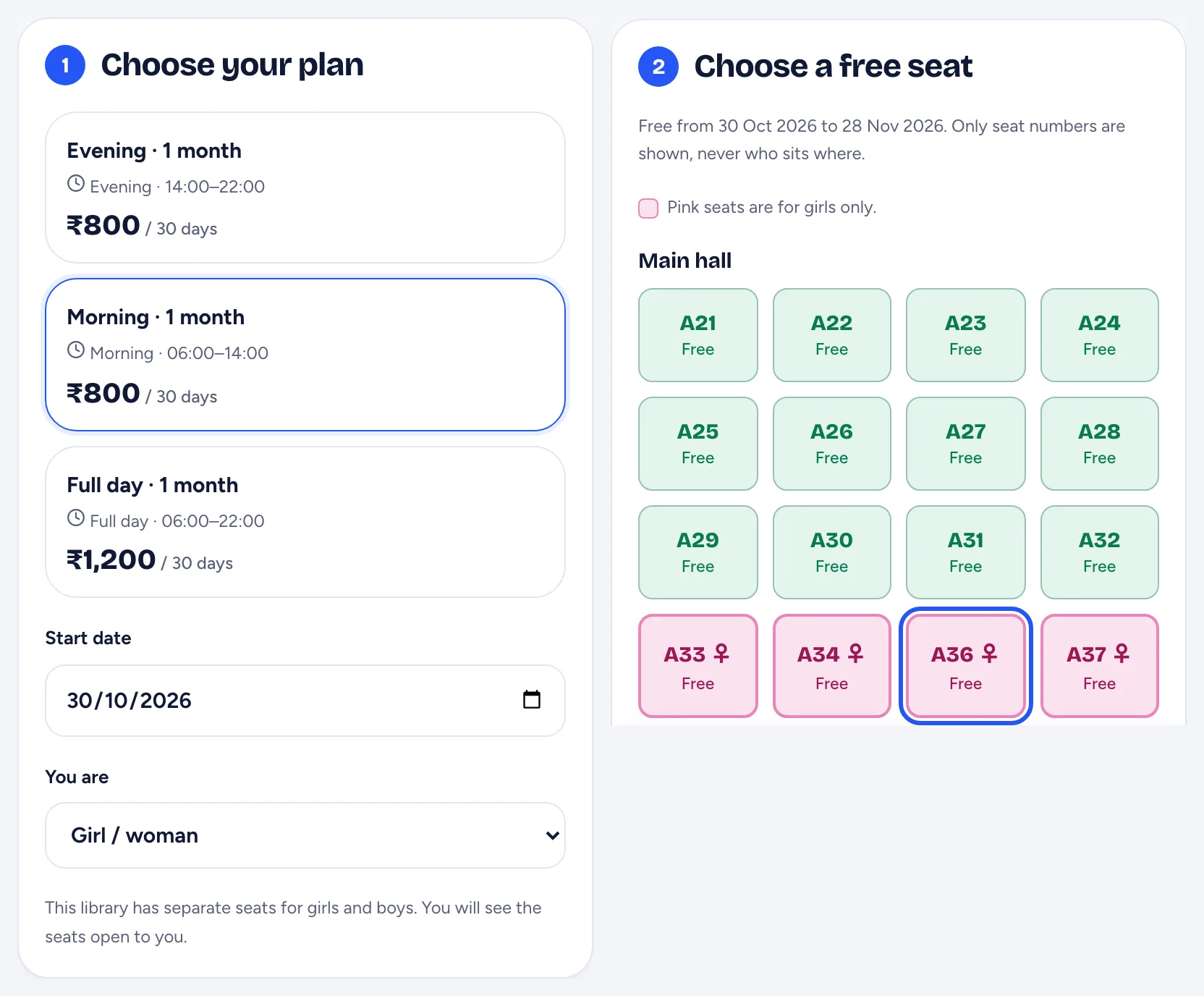
Every library on Libolink gets a booking link (your library's page address followed by /book) and a printable QR poster. Put the poster at your gate, on the notice board of nearby coaching centres and in your WhatsApp status. A student who scans it:
- Chooses a plan. They see your plans with shift timings, price and any refundable deposit.
- Chooses a start date, today or up to the number of days ahead you allow.
- Says if they are a girl, a boy or other, so they see only the seats open to them.
- Picks a free seat from your seat map, grouped by floor or room. Only seat numbers are shown, never who sits where.
- Gives their details: name, mobile number, date of birth, email if they have one and the exam they are preparing for. Students under 18 add a parent or guardian.
- Agrees to your rules and refund terms, which you write once in the settings.
The page works in English and Hindi, on any phone, with no app to install.
The seat is held while they pay
The moment a student chooses a seat, it is held for 20 minutes while they pay. Nobody else can book it, and your staff cannot give it to someone at the desk; the seat map shows it as "Booked online". After they choose how to pay, the seat stays held for the hours you choose (24 by default) while you check. A seat paid for online stays held until you decide.
If the time runs out without payment, the seat becomes free again by itself. This is what stops the two problems owners fear most: two students paying for one seat, and someone blocking seats without paying.
Three ways to pay, all straight to you
| Way to pay | What the student does | What you do |
|---|---|---|
| Online | Pays by UPI, card or netbanking through your own Razorpay account | Nothing: the payment confirms itself and the receipt is automatic |
| UPI to your account | Pays your UPI ID or QR with the exact amount filled in, then types the 12-digit transaction number (UTR) | Match the UTR in your bank or UPI app before approving |
| At the desk | Chooses to pay when they visit | Collect the fee when they come |
The money always goes to your UPI or Razorpay account. Libolink takes no commission on booking payments or on any student fee. A UPI transaction number can be used only once at your library, so a copied screenshot cannot be reused.
Approving a booking
Requests appear under People → Online booking, and the owner and booking staff get a notification. Each request shows the student's name, age, phone, plan, seat, dates, amount and how they paid, with a warning if the same phone already belongs to one of your students.
Tap Approve and, in one step, Libolink:
- creates the student with a Student ID,
- starts their membership on the chosen plan and date,
- gives them the seat,
- records the payment (online payments as paid; UPI payments wait in Payments for your check unless you tick that the money arrived),
- and makes a one-time link for the student to set their own password.
The student sees "Your seat is confirmed" and a Set your password button on the same booking page. The link is also emailed to them if they gave an email, sent on WhatsApp if your library sends WhatsApp messages, and you get a Send on WhatsApp button as well.
If you cannot accept a booking, tap Reject and write a short reason; the student sees it. If they paid online, refund them from your Razorpay dashboard.
Automatic approval, if you want it
In Link, QR & settings you choose who approves:
- We approve every booking (recommended to start).
- Approve automatically when paid online. Razorpay confirms the money, so the student gets the seat at once.
- Approve every booking automatically. The student gets the seat at once; UPI payments still wait in Payments for your check, and desk payments show as fees due.
Students under 18 are never approved automatically, and girls-only or boys-only seats are approved automatically only if you allow it, because students say their gender themselves. With automatic approval and online-only payments, the library can run with no desk staff; see Run a Study Library Without Desk Staff.
Girls-only seats, under-18 students and the waitlist
- Girls and boys sections. Mark a whole floor or room as girls only or boys only in one tap. Online, a student sees only the seats open to them, and girls-only seats show in pink on the seat map. See Girls Section in a Study Library.
- Under 18. The form asks for a parent or guardian's name and mobile. If your library asks for guardian consent, approval needs a note on how the guardian agreed.
- No free seat? The student can join your waitlist in one step, and you are told at once.
Getting more bookings
- Print the QR poster from the settings and put it where students already are: your gate, coaching centres, photocopy shops and hostels.
- Share the link in WhatsApp groups and on your free library website, which shows a Book a seat online button when booking is on.
- Watch the last 30 days on the bookings page: how many started a booking, how many sent it and how many you approved.
Online booking is included in the same Libolink plan as everything else. You can switch it on during the 30-day free trial and see real bookings before you pay anything.
Frequently asked questions
Can students book a library seat online with Libolink?
Yes. Students scan your QR poster or open your booking link, choose a plan, start date and free seat, give their details and pay online, by UPI or at the desk. You approve, or Libolink approves paid bookings on its own if you choose.
What stops two students booking the same seat?
A chosen seat is held for 20 minutes while the student pays, then for your hold time while you check. Nobody else can book it and staff cannot give it to someone else until the booking is approved, rejected or runs out.
Does Libolink take a commission on seat bookings?
No. Online payments go to your own Razorpay account and UPI payments to your own UPI ID. Libolink takes no commission on bookings or on any student fee.
How does the student get their login after booking?
On approval the booking page shows their Student ID and a Set your password button. The same one-time link is emailed if they gave an email and sent on WhatsApp if your library sends WhatsApp messages.
Can I keep girls and boys seats separate?
Yes. Mark a floor or room as girls only or boys only. Online, students see only the seats open to them, and girls-only seats show in pink on the seat map.